
Balloon Biz Studio Pro user guide
Plain English. One section at a time. Updated 15 November 2026.
Download Pro guide (PDF)Open the PDF and choose Print to print all pages or only the pages you need. The printable edition includes 41 sample views. Print pages 5-10 for the first practice exercise; the expected total is €81.00.
Start here: your guide beside the app
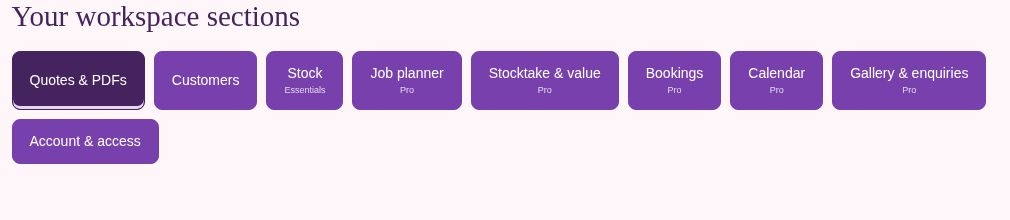
You do not need to be good with computers. Work through one page at a time. You can stop after any saved step and come back later.
- Sign in using your normal app sign-in page, not an old setup or reset email.
- Keep one editing tab open. Save before switching to another device.
- Start with Stock to enter items, quantities, pack costs and storage locations.
- Use the named Save button after changing a record. Typing alone does not save it.
- Wait for Saved online. If saving fails, keep the page open and read the message.
- Use the next two practice sections with fictional details first.
Quotes & PDFs
Prepare, save and download customer quotes.
Customers
Save contact details and find linked quotes and bookings.
Stock
Record items, quantities, costs and locations. Essentials and Pro.
Job planner
Plan stock for a job and open its pick list. Pro.
Stocktake & value
Count stock and save dated reports. Pro.
Bookings
Record job details and payments received. Essentials and Pro.
Gallery & enquiries
Use the gallery and enquiry tools enabled for your account.
Calendar
Connect saved bookings to a subscribed calendar. Pro.
Account & access
Read account access details. Download private backup is at the top.
Practice 1: save one bag in Stock
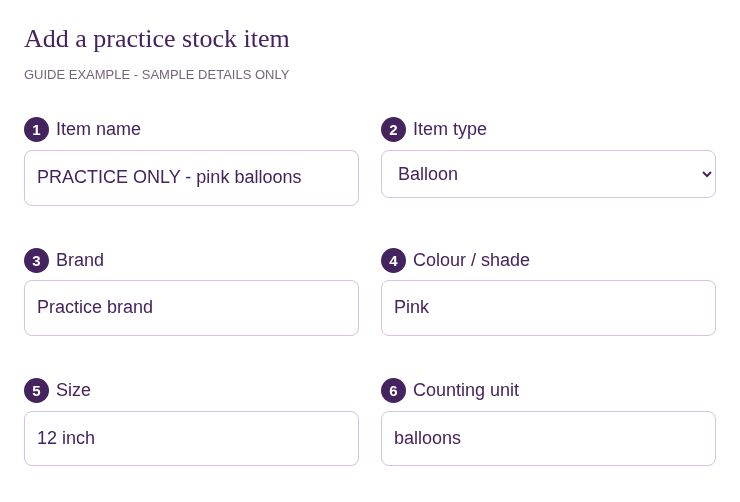
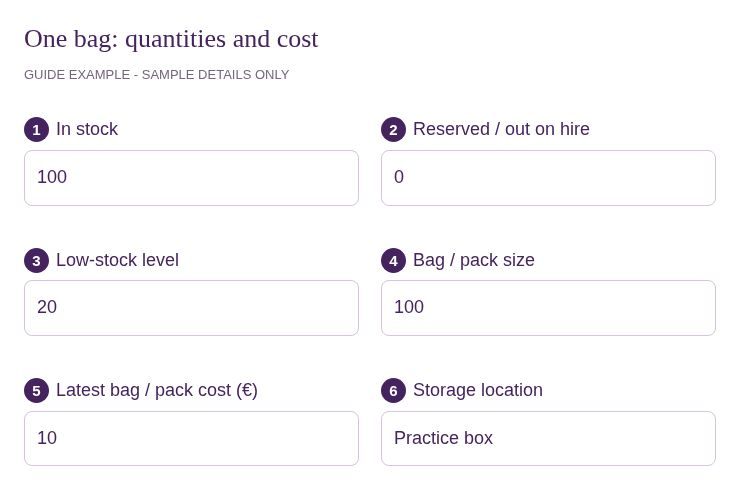
This made-up bag will let you practise without changing your real stock. You will enter one bag of 100 balloons costing €10.
- Click Stock. In Item name, type PRACTICE ONLY - pink balloons. Enter Practice brand in Brand.
- Choose Balloon as Item type. Put Pink in Colour / shade and 12 inch in Size. Leave Balloon style blank for this exercise.
- In Counting unit, type balloons. In In stock, enter 100. In Reserved / out on hire, enter 0. In Low-stock level, enter 20.
- In Bag / pack size, enter 100. In Latest bag / pack cost (€), enter 10. These are two different things: 100 is how many are in the bag; €10 is what the whole bag costs you.
- In Storage location, type Practice box. You can leave supplier, invoice, purchase date, batch reference and notes blank.
- Click Add / save stock item. Look for Stock saved online and check that your new item appears in the list.
- The card should show In stock: 100, Reserved: 0 and Available: 100. Leave this practice item in place until you finish the next section.
Practice 2: make a quote - expected total €81
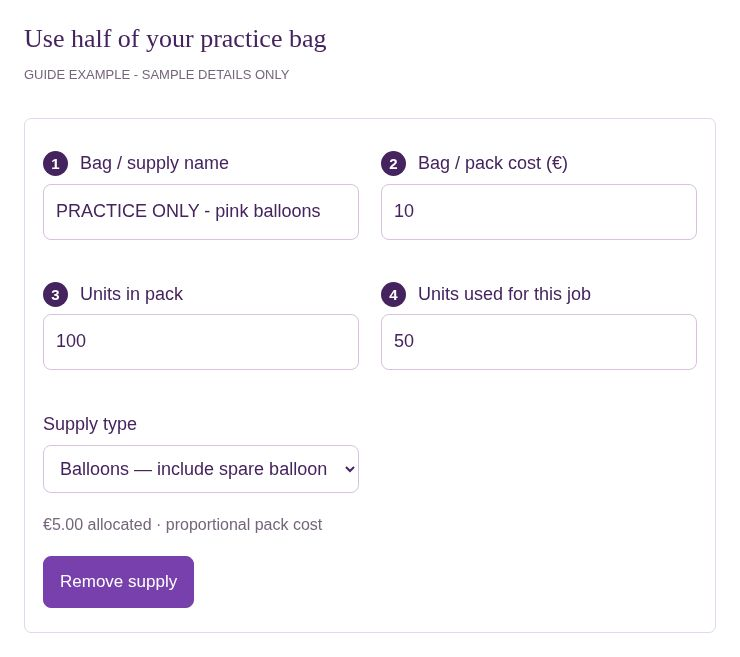
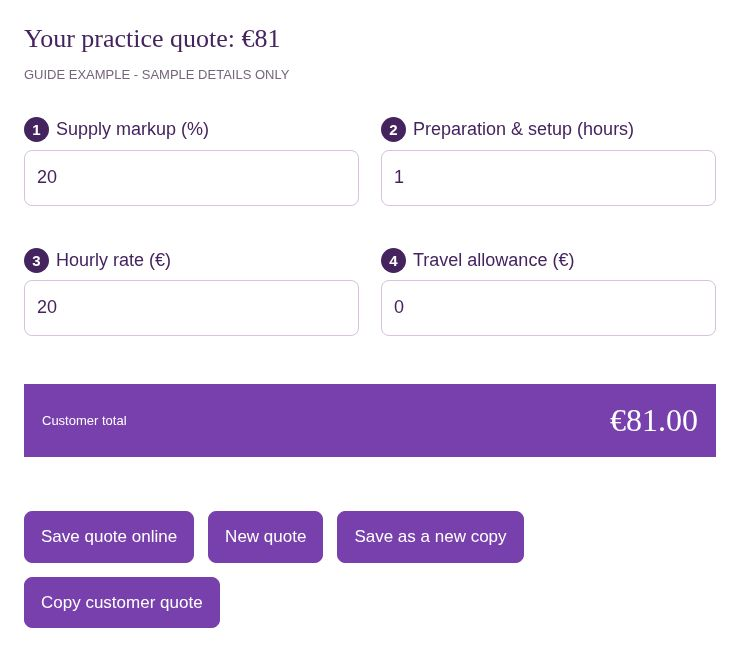
Use the practice stock item from the previous page. The customer and event below are made up. No email will be sent during this exercise.
- Click Quotes & PDFs. Click New quote. If asked about starting a fresh quote, only continue once any work you want to keep is saved.
- Leave Saved customer as No saved customer selected. Change Customer name to PRACTICE ONLY - customer. Choose a future Event date. In Design / job description, type Practice balloon garland.
- Under Bags and supplies, choose Individual bags and supplies. Open Choose from your stock. In Stock item, select PRACTICE ONLY - pink balloons. Click Add selected supply to quote.
- In the added row, enter 50 in Units used for this job. The copied pack size should be 100 and the pack cost €10. Half of the bag costs €5. Leave Extra balloon allowance, Supplier delivery and Supplier VAT total at 0.
- In Extras and hire, choose Welcome sign, then click Add extra / hire item. Enter quantity 1 and Customer price per item (€) of 55.
- Set Supply markup (%) to 20, Preparation & setup (hours) to 1 and Hourly rate (€) to 20. Set Travel allowance and Other job costs to 0.
- Open Additional time, delivery, helium and discount. Set consultation, sourcing and dismantling to 0 minutes. Choose Customer collection - no travel charge. Leave helium, overheads and discount at 0.
- Check Customer total: it should be €81.00. Click Save quote online. Look for Quote saved online and Saved online at the top. Then click Preview customer PDF. Do not click Send quote email.
Customer and event: who is the quote for?
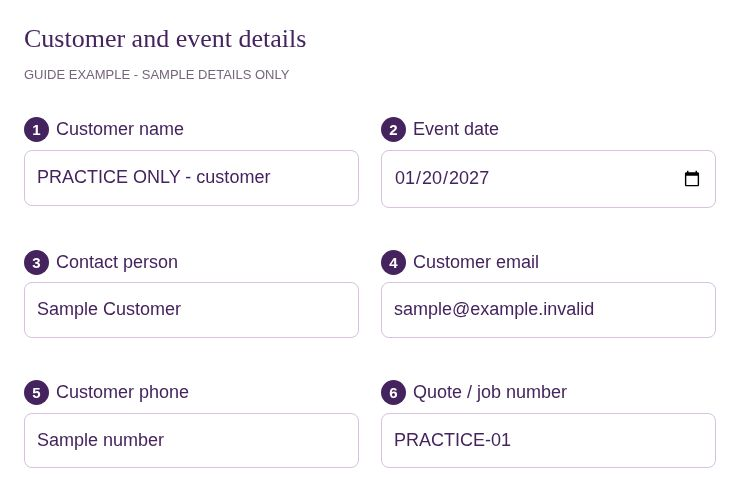
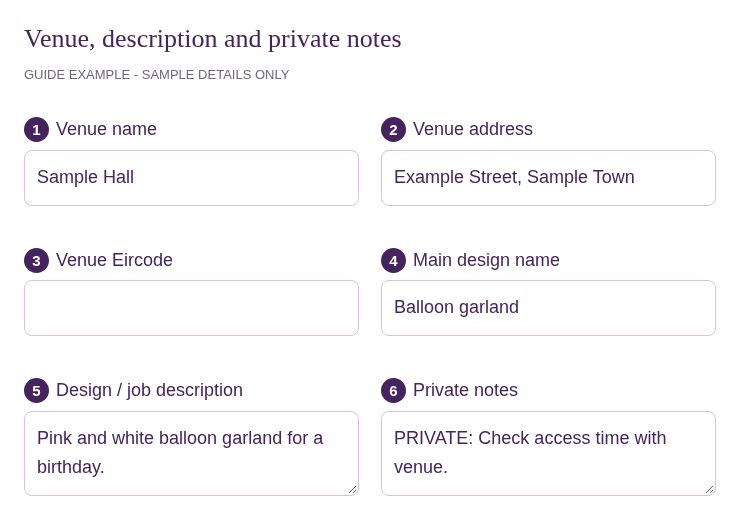
A quote tells the customer what you plan to provide and the price. These details help you and the customer recognise the right job.
- Choose a Saved customer if you already have their record. Their name, contact person, email and phone are copied into the quote.
- For a new person, enter their details yourself. Save contact as a customer creates a customer record, but you must still Save quote online to save and link this quote.
- Open Customer, venue and job details to see the extra contact and venue boxes. Fill in what you know; leave optional unknown details blank.
- Review all copied details before saving. Selecting a different saved customer replaces the copied name and contact details.
Customer name
The person or business receiving the quote. Example: Sarah Murphy.
Event date
The day of the celebration, not the day you are making the quote.
Quote / job number
Your own reference, such as 00024. It appears as Job reference. The app also has its own BBS reference.
Contact person / Customer email / Customer phone
Who you will deal with and how to contact them. Do not put private reminders here.
Venue name / Venue address / Venue Eircode
Where the job will take place. The Eircode does not automatically work out distance.
Main design name
The name beside the main design price, for example Balloon arch. The app uses Main design if you leave this blank.
Design / job description
Explain what the customer is getting: colours, design and agreed work. This appears on the customer quote.
Private notes
Reminders just for you. These are excluded from the customer PDF. Example: Ask venue about access.
Bags and supplies: choose what the job uses
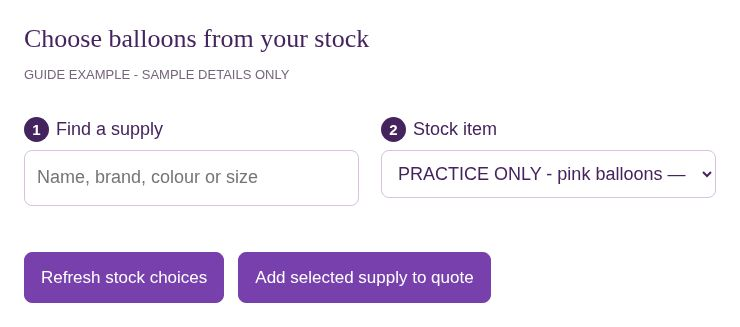
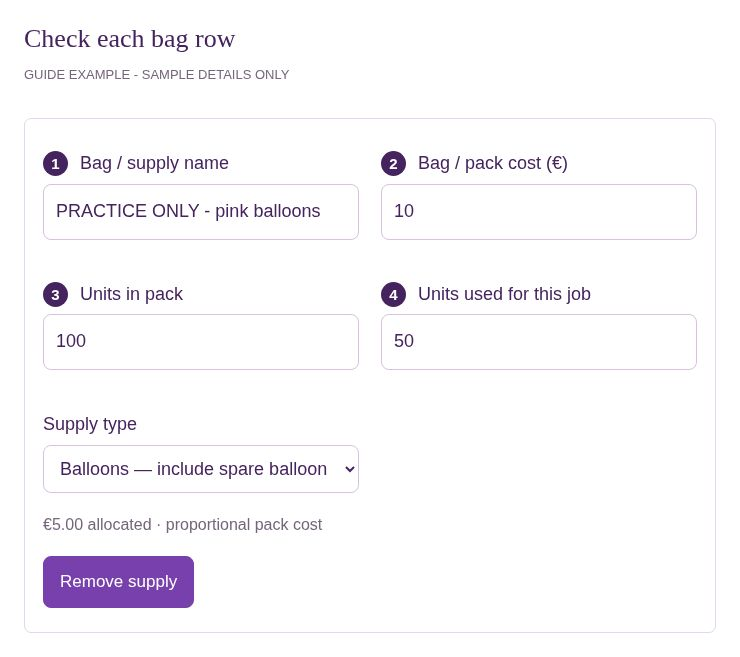
Your stock register remembers what you own. The quote uses a copy of the pack price and pack size to calculate this job. These are different tasks.
- Choose Individual bags and supplies for the usual stock-based method. Open Choose from your stock.
- Use Find a supply to search by name, brand, colour or size. Choose the item in Stock item, then click Add selected supply to quote.
- In the new row, enter Units used for this job. Check that the copied pack size and price are correct.
- To add another colour, return to the SAME Stock item dropdown above the rows. Select the next colour and click Add selected supply to quote again. Repeat for each bag.
- A blank row from Add bag / supply is for typing a supply by hand. It does not create a stock record. Remove an empty row with Remove supply if you do not need it.
- Click Refresh stock choices if an item you recently saved in Stock is missing. Clear any search text if the list looks incomplete.
Bag / supply name
Which bag or material this row represents.
Bag / pack cost (€)
What the WHOLE pack costs you, not the customer selling price.
Units in pack
How many pieces are in one pack. Example: 50 balloons.
Units used for this job
How many you need from this bag. Example: 20. Do not enter more than the pack contains: add another bag row if needed.
Supply type
Choose Balloons for spare-balloon allowance. Choose Other material for ribbon, weights or other supplies without that allowance.
Enter a total manually
An alternative only: if you have already worked out ALL supply costs yourself, type that one amount in Supplies cost. It replaces the bag-by-bag method. It is NOT an extra amount to add.
Supply cost rules: spares, delivery and VAT
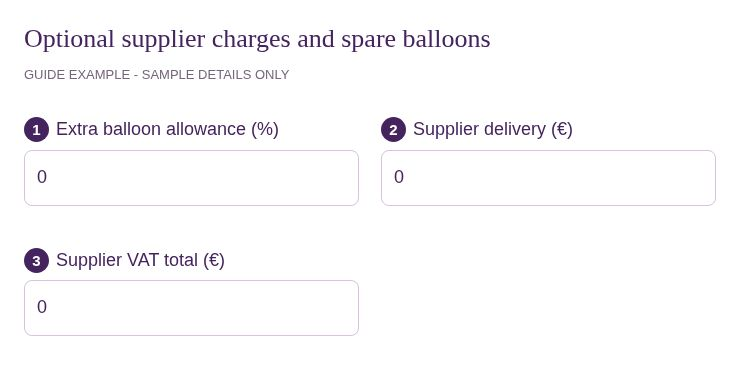
You can leave the extra supplier charge fields at €0 when your saved bag costs already include those charges.
- Check the pack price you saved in Stock. Does it already include the bag’s share of supplier delivery and supplier VAT? If yes, leave the quote’s supplier charge fields at 0.
- If pack prices exclude those charges and you want to allocate them here, enter the supplier’s delivery and VAT totals. Include all packs from that order, even unused packs with 0 used.
- The app shares supplier charges according to the value of each pack. This is different from charging your customer for travelling to their venue.
- Leave Extra balloon allowance at 0 if Units used already includes spare balloons. Otherwise enter a percentage for spares; the app rounds the extra quantity up, up to one whole pack per row.
The more-than-75% rule
A bag of 100 costing €10: 50 used costs €5; 75 used costs €7.50; 76 used costs the whole €10. Exactly 75% is not a whole-bag charge.
Extra balloon allowance (%)
Example: 70 used plus 10% spares becomes 77. That crosses 75%, so the whole bag is charged. Each row is limited to one pack.
Supplier delivery (€)
Delivery charged by YOUR supplier for the purchase order. Do not enter it again if already included in bag prices.
Supplier VAT total (€)
VAT you paid on the supplier order if it is not already in the pack costs. This field does not calculate VAT to charge your customer.
Full-cost pack example
An order has €100 of products plus €20 delivery and VAT combined. A €10 bag becomes €12. If you saved €12 in Stock, leave these supplier fields at 0 in the quote.
Extras and hire: the price the customer pays
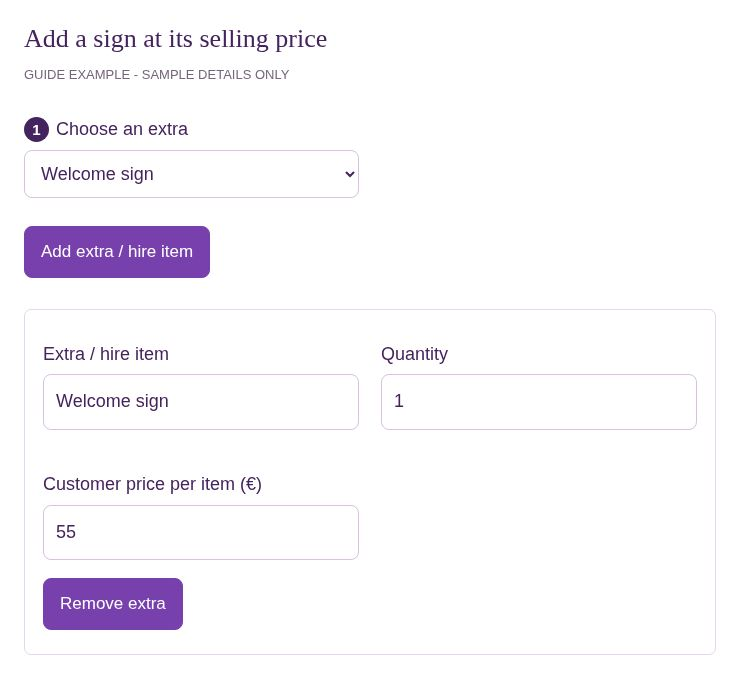
Use this section for finished-price additions such as a welcome sign, stand hire, shimmer wall or balloon bouquet.
- Choose an extra from the list and click Add extra / hire item. This adds a row; choosing a name alone does not add a price.
- Change Extra / hire item to the name you want the customer to see. Enter Quantity and Customer price per item (€).
- For a welcome sign you sell for €55, enter quantity 1 and price 55. The app adds exactly €55. It does NOT add supply markup to it.
- For two identical hire items costing the customer €25 each, enter quantity 2 and price 25. The quote adds €50.
- Use Remove extra if you added the wrong item. Check that every remaining extra has a name and price before saving.
Quantity
How many finished items or whole bunches you are selling. For five bunches of three balloons, enter 5 and the price of ONE whole bunch.
Customer price per item (€)
Your finished SELLING price, not the supplier cost. Include the materials, work and helium you want that price to cover.
Avoid counting twice
If a €55 sign price already covers making it, do not also put that same sign’s materials and labour into other sections.
Main design versus extras
Put the main balloon design costs in supplies and labour. Use extras for separately priced additions. Name them clearly so the customer can follow the quote.
Your time: hours here, minutes below
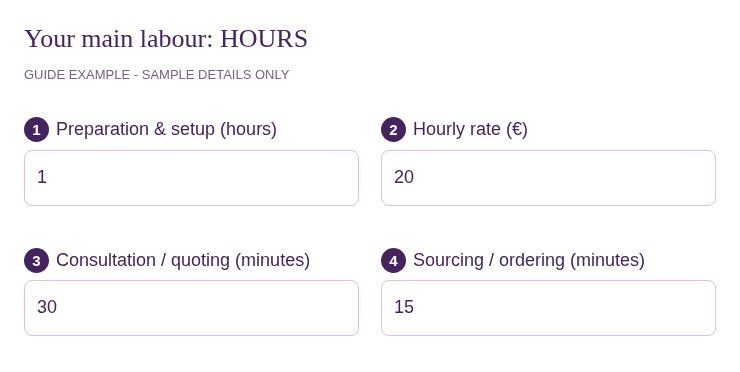
Your time has value. You choose which time to include. All time fields use the Hourly rate shown on the quote.
- Enter Preparation & setup in HOURS. One hour is 1; one hour and a half is 1.5; half an hour is 0.5.
- Enter your Hourly rate in euro. Example: 20 means €20 for one hour of work.
- Open Additional time, delivery, helium and discount. The three extra work fields use MINUTES. Half an hour is 30 here, not 0.5.
- Leave any time field at 0 if you do not charge that time separately or have already included it in another figure.
- Do not count the same minutes in both Preparation & setup and the additional time boxes.
Preparation & setup (hours)
Making the design, preparing it and putting it up. Example: 2 hours at €20 adds €40.
Consultation / quoting (minutes)
Time talking about the job, answering questions and preparing the price. Example: 30 minutes at €20/hour adds €10. Use 0 if you choose not to include it.
Sourcing / ordering (minutes)
Time looking for and ordering the supplies for this job. Example: 15 minutes at €20/hour adds €5. Use 0 if already covered.
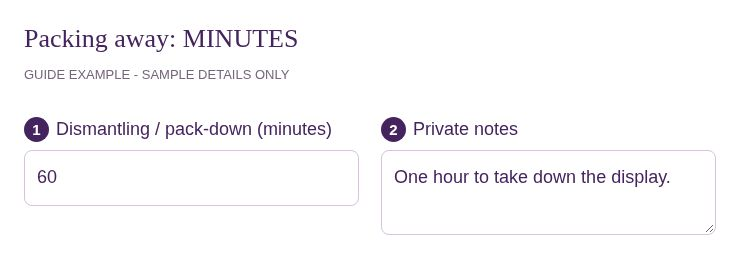
Dismantling / pack-down (minutes)
Time taking down and packing away the display. Example: 45 minutes at €20/hour adds €15. Enter 60 for ONE HOUR; entering 1 means ONE MINUTE.
Where does the customer see this?
These work costs are included in the main design price. The customer does not receive your hourly rate or private time breakdown.
Travel: choose ONE method
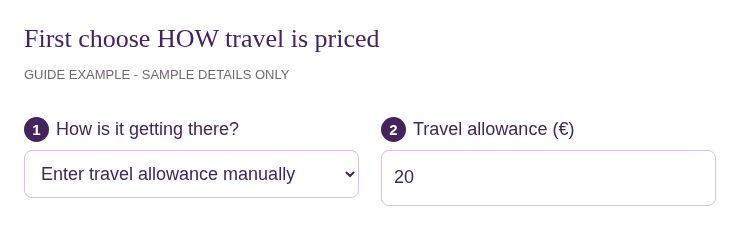
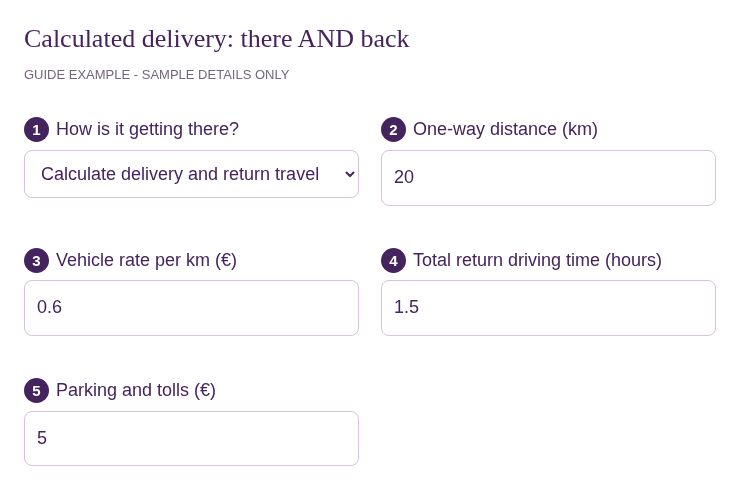
The app needs to know whether the customer collects, you enter one travel price, or you want the app to calculate delivery.
- Find How is it getting there? and choose one of the three options below.
- For Customer collection - no travel charge, no travel is added. Your preparation and setup work can still be charged.
- For Enter travel allowance manually, put your chosen euro amount in Travel allowance (€). Distance, driving time and parking fields do not affect this manual amount.
- For Calculate delivery and return travel, enter one-way distance, vehicle rate, return driving hours and parking/tolls. The app calculates travel instead of using your manual allowance.
- Check the Travel amount in the private breakdown. If it looks wrong, check the chosen method first.
Travel allowance (€)
A single travel amount you decide yourself. Example: enter 20 to charge €20 when manual travel is selected.
One-way distance (km)
Distance from you to the venue, once. The app doubles this for the return trip. Example: 20 means 40 km return.
Vehicle rate per km (€)
Your chosen charge for each kilometre. At €0.60, 40 return km adds €24. This is a calculator setting, not an official mileage entitlement.
Total return driving time (hours)
Time driving there AND back. Use hours: 1.5 means 90 minutes. At €20/hour this adds €30.
Parking and tolls (€)
The total for this job. Enter 0 when there are none.
Worked example
20 km one way at €0.60, plus 1.5 driving hours at €20, plus €5 parking = €24 + €30 + €5 = €59 travel.
Markup, helium, overheads and discounts
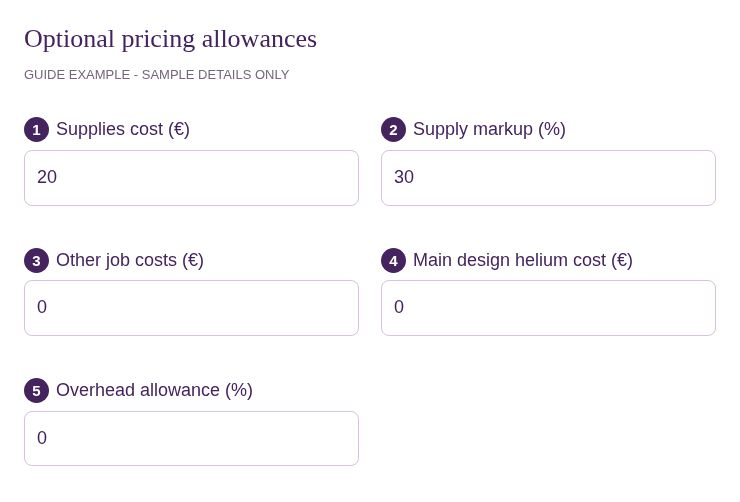
These are optional pricing controls. Leave a field at 0 when you are not using it. Do not add a cost already covered by an extra’s finished selling price.
Supplies cost (€)
When using individual bags, the app works this out from the rows. When using manual supply entry, type your already-calculated total here.
Supply markup (%)
A percentage added to supplies and main-design helium. €20 supplies with 30% markup adds €6, making €26 before other charges. It does not add markup to labour, travel or final-price extras. Markup is not the same as profit margin.
Other job costs (€)
One cost for this job that is not entered elsewhere. Example: €8 for a specialist job expense. It becomes part of the main design price. Explain it to yourself in Private notes.
Main design helium cost (€)
What the helium for the main design costs you. Supply markup applies to it. Leave at 0 if no helium is needed or the helium is already covered elsewhere.
Helium cost helper
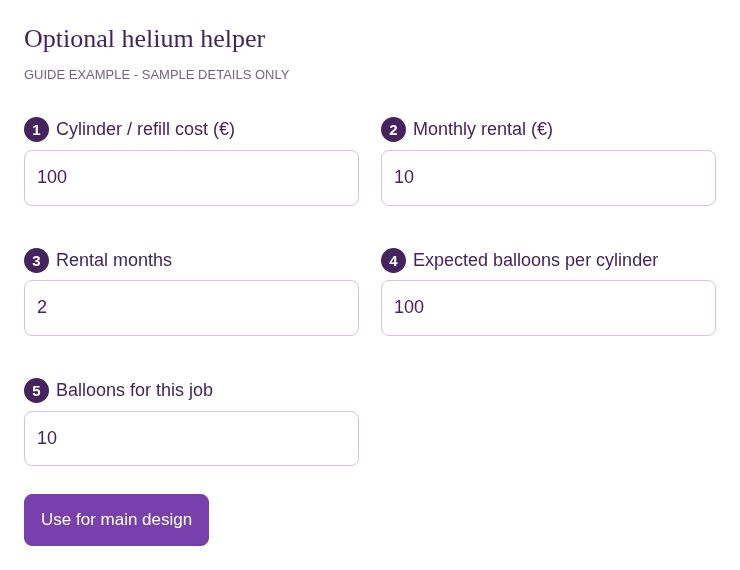
An optional way to estimate the main helium cost. Cylinder / refill cost is the refill price. Monthly rental is the rental per month. Rental months is how many months to include. Expected balloons per cylinder is how many suitable balloons that cylinder should fill. Balloons for this job is how many you will fill. Click Use for main design to transfer the result.
Helium helper example
€100 refill + €10 rental for 2 months = €120. If it fills 100 balloons, each uses €1.20 helium. Ten balloons cost €12. Expected fills depend on balloon size and supplier guidance; the app does not work that out. Do not enter the €12 a second time.
Overhead allowance (%)
A contribution towards running costs such as electricity and workshop expenses. It applies to main-design costs BEFORE markup: supplies + main helium + labour + Other job costs. It excludes travel and final-price extras. Example: 10% of €100 eligible costs adds €10.
Discount type / Discount amount
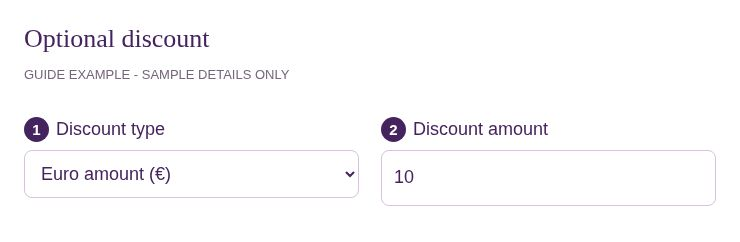
Choose Euro amount or Percentage. Enter 10 for €10 off with Euro amount, or 10% off with Percentage. The app reduces the subtotal once. Leave at 0 for no discount; it will not reduce the total below zero.
Save, print, download and email your quote
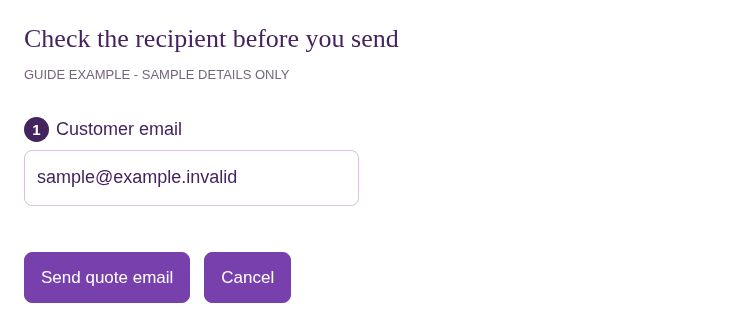
Save online first. Then review the customer version before printing, downloading or sending.
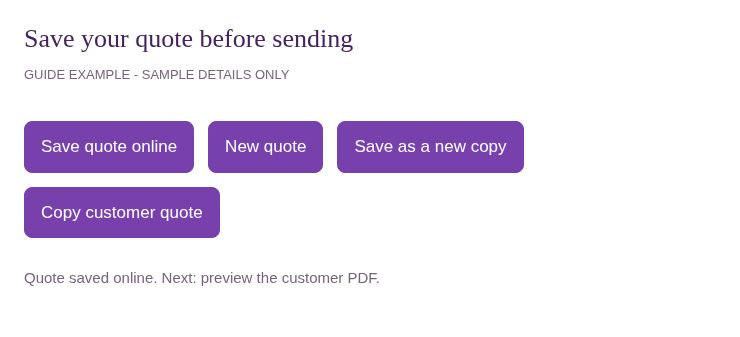
- Click Save quote online. Wait for Quote saved online and check the top saving message. The quote should appear in Saved quotes.
- Click Preview customer PDF. Check customer details, event date, description, items, prices and total. Private costs and notes are excluded.
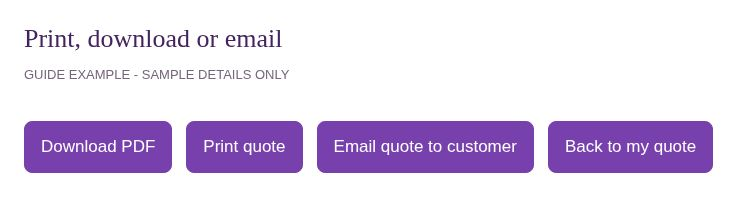
- Click Download PDF to save a PDF file to your device. The app message says the download has started. Find it in your browser’s Downloads list; the filename begins BBS-.
- Click Print quote to open your browser’s print window. Choose your printer there. Download PDF is the separate button for making a file.
- In an activated business account, click Email quote to customer. Review or enter the recipient’s email address. Check the displayed quote and reply address.
- Click Send quote email and check the address in the confirmation. Only confirm if you want the email sent. The customer PDF is attached.
- Return to Recent quote emails and click Refresh email status when you want an updated delivery result.
New quote
Starts a fresh form. Save your current quote first if you want to keep it.
Save as a new copy
Creates another saved quote with a new app reference. Do not use this just to update an existing quote.
Copy customer quote
Copies customer-facing text to your clipboard to paste elsewhere. It does not send an email.
Sent / accepted
The email service accepted the send request. It does not prove inbox delivery.
Delivered
The customer’s email server received it. It does not prove the person read it.
Open detected
An estimate affected by privacy tools and automatic checks. It does not confirm reading.
Stock: what you have and where it lives
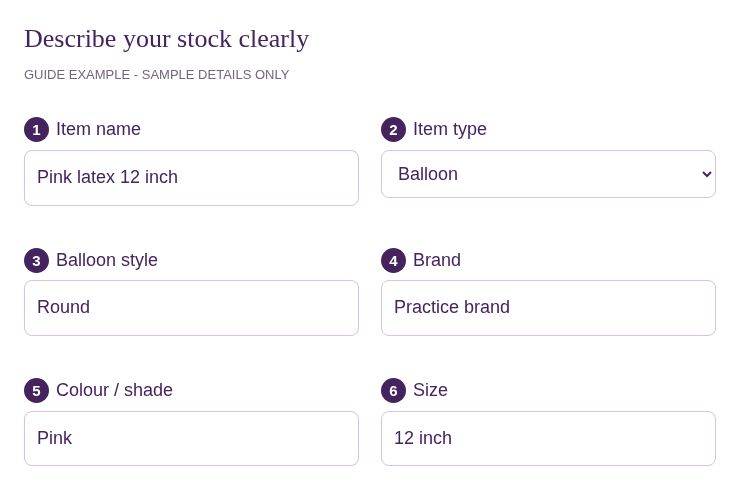
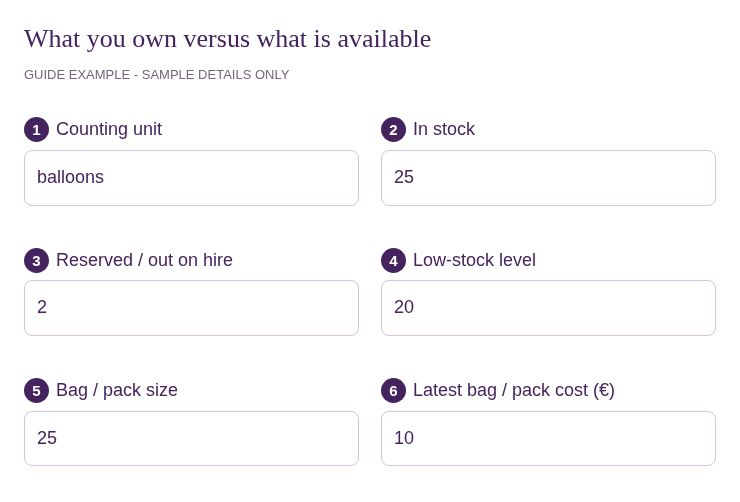
Stock is your list of owned balloons, materials and hire equipment. First enter what you actually have. Then keep it up to date.
- Click Stock and enter an Item name that you can recognise. Example: Sempertex pink 12 inch.
- Fill in the identity and quantity fields below. Enter stock quantities in individual units, not bags, unless you deliberately count that item in another unit.
- Enter a Storage location such as Box 4 - pink latex or Shelf 2 - stands. Label the physical box or shelf to match.
- Click Add / save stock item. Check Stock saved online. To change an item later, click Edit item on its card, change the details and Save changes.
- Click Download low-stock list to download a CSV spreadsheet of items at or below their low-stock level. Open it in Excel, or import it into Google Sheets. This does not place an order.
Item type / Balloon style / Brand / Colour / Size
Describe the item. Item type can be Balloon, Ribbon, Foil, Weight, Material or Equipment. Use style for the finish or shape. Clear names make choosing stock easier.
Counting unit
What one quantity means. Use balloons for individual balloons, metres for ribbon measured in metres, or stands for stands. Pack size and job quantity must use the same unit.
In stock
The number you physically own, including reserved units. Three bags of 50 balloons means 150, not 3.
Reserved / out on hire
Units set aside or currently out. With 25 in stock and 2 reserved, 23 are available. Reserving 2 does not change In stock to 23.
Low-stock level
The point at which the item appears on your low-stock list. If the level is 20, an available quantity of 20 or less is included.
Bag / pack size / Latest bag / pack cost
How many units in one pack and what that whole pack costs you. These are copied into a quote when you select the stock item.
Stock: purchases, reservations and used balloons
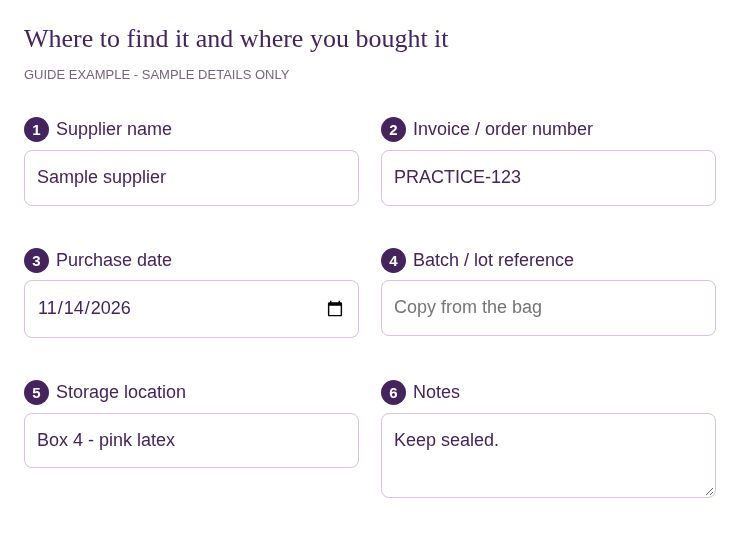
Keep quantities consistent so Available remains useful. Invoice imports add purchases; Confirm picked deducts items taken for a job.
- Use Import supplier invoice PDF for a new purchase, or edit a stock item manually. For a manual entry, add the purchased quantity to what is already there: 25 owned + 50 bought = 75. Do not add a purchase again if the invoice import already added it.
- When you reserve 10 from 75, keep In stock at 75 and set Reserved to 10. Available becomes 65. Save the change.
- If you handle stock manually, subtract used balloons and remove any reservation for those same balloons. If Confirm picked — deduct stock already removed them, do not subtract them again. Manual reservations are managed in the Stock item.
- If a job is cancelled and the balloons are unused, remove their reservation but do not reduce In stock.
- For reusable stands, do not remove them from owned stock when hired out. Record them as reserved/out on hire and release that amount when returned.
Supplier name
Who you bought it from. Optional, but useful when reordering.
Invoice / order number
A reference so you can find the purchase later. This does not upload or store the invoice itself.
Purchase date
When you bought the stock. Optional.
Batch / lot reference
The manufacturer’s batch if you want to track it. Optional.
Storage location
The box, shelf or cupboard. Keep it specific enough for someone else to find the item.
Notes
Your own stock reminders. Example: Keep sealed, or stand has a marked base. These are not customer quote details.
Customers: save contact details once
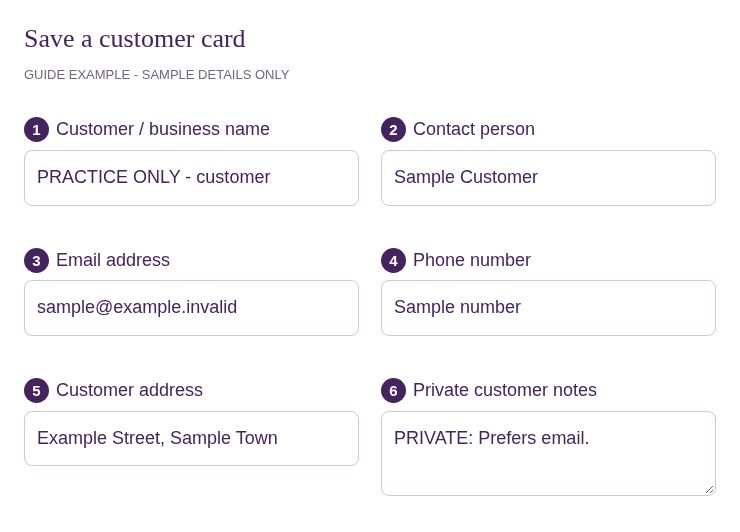
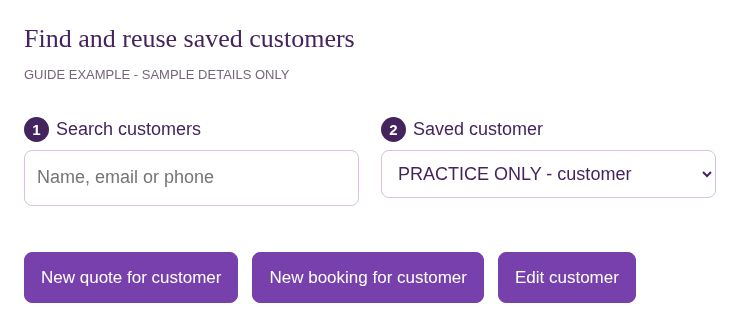
A customer record is a contact card, not a quote or booking. You link those separately so the right history appears together.
- Click Customers, then New customer. Enter Customer / business name. Add a Contact person if the customer is an organisation or has another contact.
- Add Email address, Phone number and Customer address where known. Private customer notes are for you only.
- Click Save customer and look for Customer saved online. Use Search customers to find a name, email or phone.
- Use New quote for customer or New booking for customer to copy contact details into a fresh form. Save any current unfinished form first.
- For an older quote or booking, open it, choose the correct Saved customer and save it again. Similar names are not automatically joined.
- Use Edit customer to update contact details. Older documents retain their saved details. Archive customer hides the record from normal choices without deleting its history; Include archived customers lets you restore it.
Marketing permission
An email address for a quote does not itself record marketing opt-in. The card shows permission from the optional box on your website enquiries where that connection is available.
Refresh marketing permissions
Reloads enquiry permission information. If the check fails, do not assume permission.
Customer has withdrawn marketing permission
Tick this when the customer asks to stop marketing. Save the change. Do not use it to stop necessary discussions about their own booking.
Private customer notes
Saved on the customer card. Not automatically copied into the quote or emailed PDF.
Bookings: dates, jobs and payment records
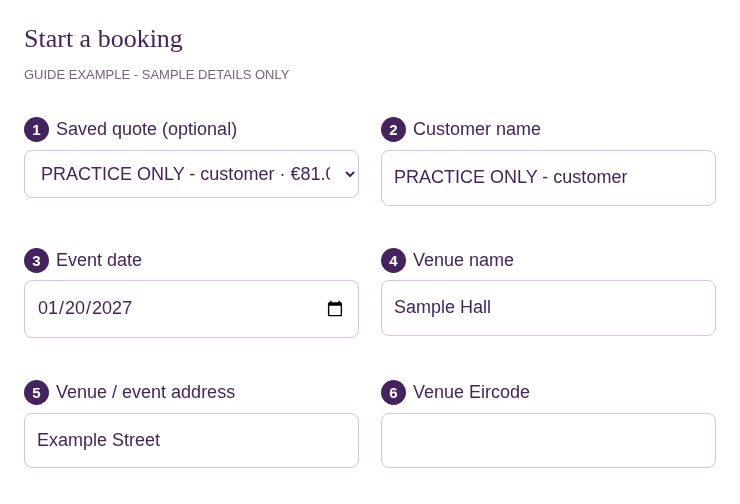
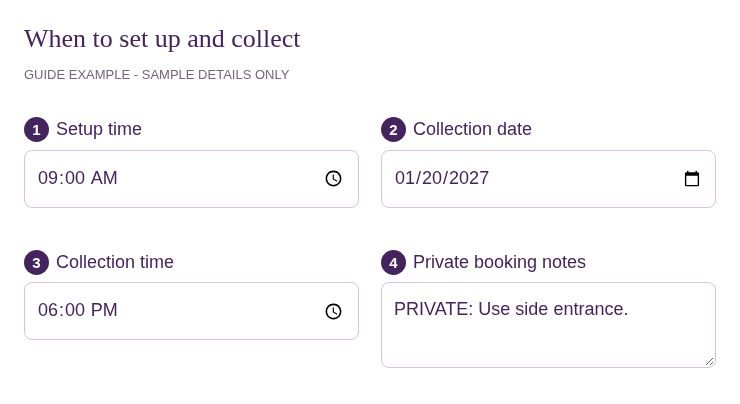
A booking record helps you organise a job. Saving it does not collect money or automatically reserve stock.
- Click Bookings, then New booking. Choose a Saved quote if this job already has one; the agreed total and available details are copied.
- You can also leave Saved quote as No linked quote and enter the booking directly. Choose a Saved customer if available.
- Check customer, contact, email, phone, venue, address and Eircode. Enter Event date, Setup time, Collection date and Collection time as needed.
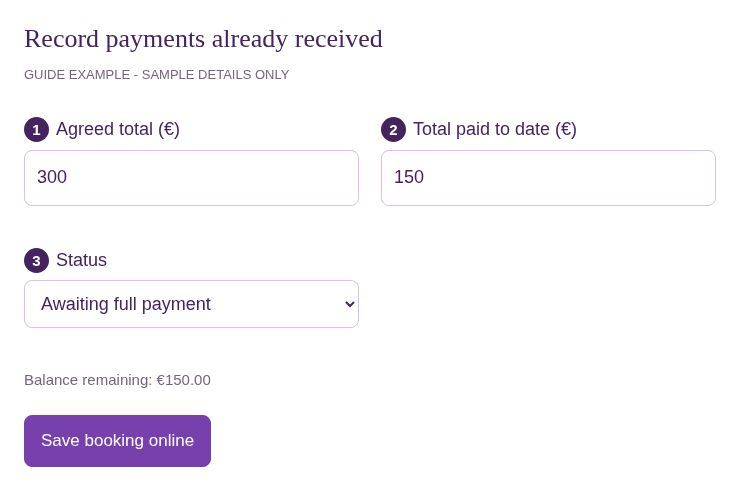
- In Agreed total (€), enter the price agreed for the whole job. In Total paid to date (€), enter what you have actually received after checking payment.
- Choose a Status, add Private booking notes if needed and click Save booking online. Read the saving message.
- To record a later payment, click Edit booking / record payment. Replace Total paid to date with the NEW CUMULATIVE total and save.
Payment example
Agreed total €300; first payment €100 means Total paid to date 100, balance €200. After another €50, change paid to 150, not 50. Balance becomes €150.
Status
Enquiry, Awaiting deposit, Awaiting full payment, Confirmed, Completed or Cancelled: choose the stage yourself. Saving or receiving an enquiry does not automatically confirm the job.
Private booking notes
Access, collection and planning reminders. They stay off the customer confirmation.
Preview booking confirmation
Available once a payment above €0 is recorded. Review the booking details and balance, then download or print the confirmation.
Calendar sync
Balloon Biz Studio Pro includes a one-way calendar connection. Open Calendar to create a private subscription link. Save booking changes in the app; the calendar provider refreshes them on its own schedule. See the Calendar section at the end of this guide.
Gallery, website enquiries and your account
Your customer page shows the photos you publish and lets visitors request a quote. Their requests arrive in your private account.
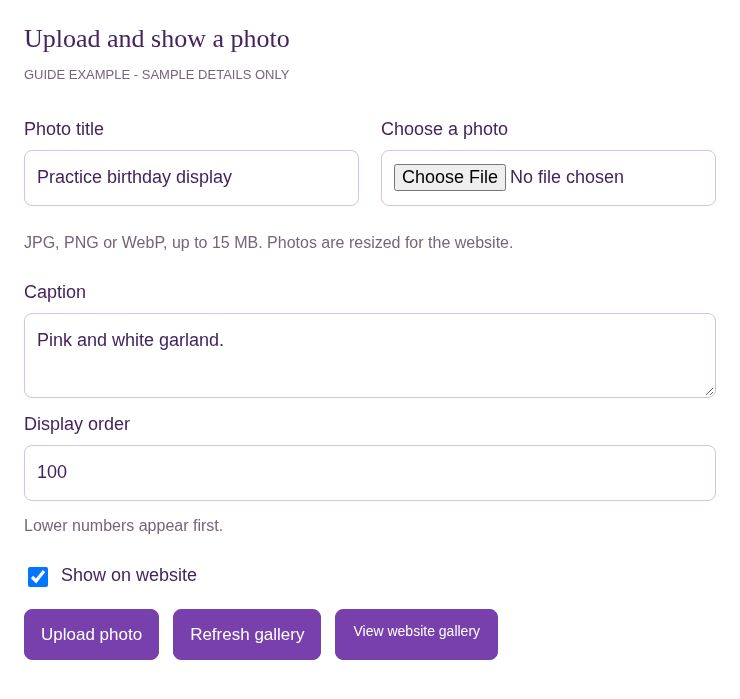
- In Gallery & enquiries, enter a photo title, choose an image and add a caption describing the work.
- Choose a Display order: smaller numbers appear first. Tick Show on website if you want visitors to see it, then Upload photo. An unticked photo stays a draft.
- Use Save photo details after editing. Archive a photo to hide it. Use Open your customer page to see what visitors see.
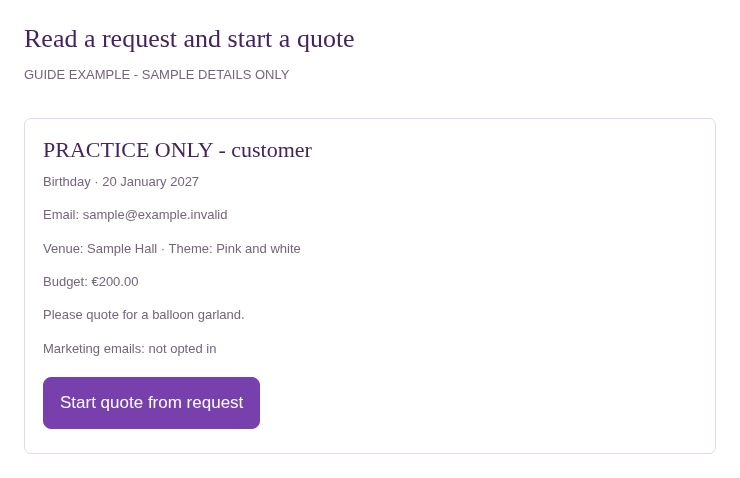
- For incoming requests, click Refresh requests. Review the customer’s date, event details, venue, budget and message. A request does not reserve the date.
- Click Start quote from request after saving any current quote. The request details are copied into a new quote. Check the customer-facing description and enter your costs before saving.
- Save the quote and open the customer PDF to check the details before sharing it.
Photo rules
Use JPG, PNG or WebP. Original uploads are limited to 15 MB and resized for the website. Upload only photos you have permission to publish.
Display order example
10 appears before 20; 20 appears before 100. It is a position number, not a price or date.
Account & access
Shows your current package and access details.
Download private backup
Saves a private copy of workspace records. Gallery photo files and website enquiries are stored separately.
If something is confusing or will not save
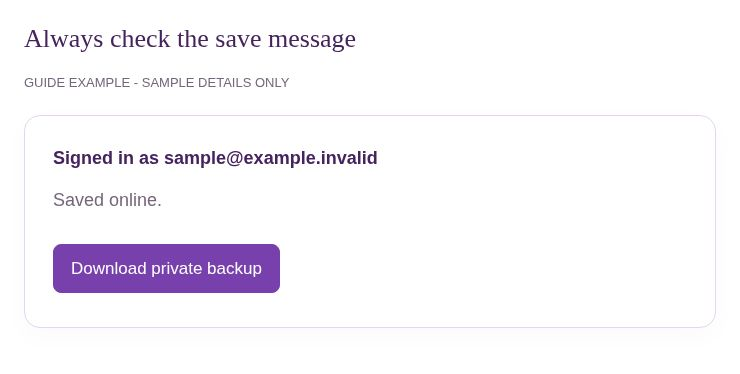
Stop and read the message before closing the app. You do not need to guess or keep pressing buttons.
- If the quote total says Check figures, look for empty required fields, negative numbers or an unfinished supply/extra row. Remove an unused blank row or complete it.
- If Save reports a newer version, another tab or device may have saved first. Keep the current tab open and click Download private backup before refreshing anything.
- Read the message beneath Signed in as at the very top. Take a screenshot of that message and ask for help. The form may still show your work even though it was not saved online.
- Do not use Save as a new copy repeatedly to fix a saving problem: that can create extra records when saving works.
- If you cannot see a downloaded PDF or shopping list, open your browser’s Downloads list. Download PDF makes a file; Print quote opens the printer window.
- When practising this guide, write down the page, exact field or button and what you expected to happen. Tell us if you needed an explanation that was not on the page.
Useful checks before sending
Correct customer and email; right date and venue; clear description; each extra entered once; correct total; no private information in the description; quote saved online.
What is not automatic
Quotes do not reserve stock. Bookings do not collect payment. Venue details do not calculate routes. Calendar subscriptions update one way; refresh times depend on your calendar provider. Marketing emails are not sent from customer records.
When you finish a session
Save each changed record, confirm Saved online, then sign out if you wish. Keep one editing tab open at a time.
Calendar: connect your saved bookings
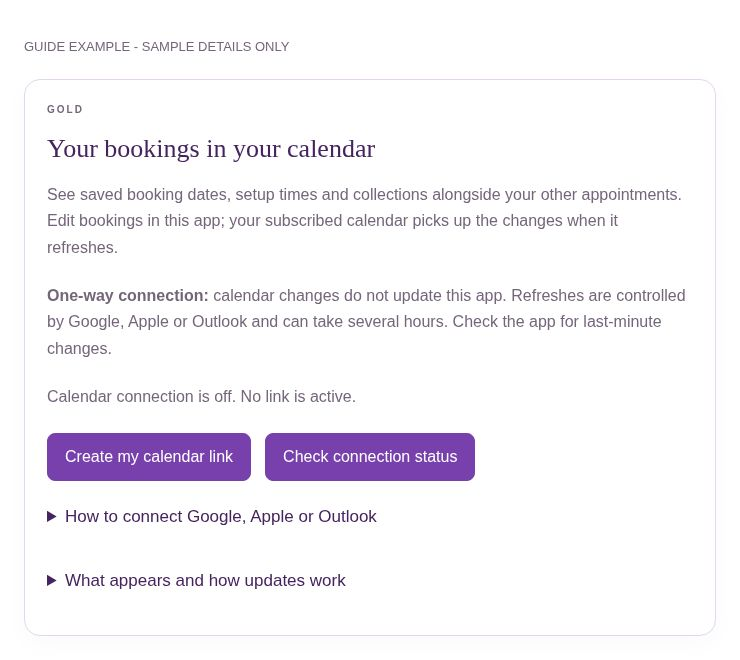
This is a one-way connection from your saved bookings to your own calendar. Keep editing jobs in the app. Editing the calendar does not change the booking.
- Save all booking changes online first. Click Calendar in the app. The connection starts off.
- Click Create my calendar link. A private link appears. Anyone with that link can read the included customer names, venues and dates, so keep it to yourself.
- Click Copy calendar link. Do not paste this link on your public website or send it to customers.
- In Google Calendar on a computer, click + beside Other calendars, choose From URL, paste the link and Add calendar. On Apple or Outlook use a calendar subscription, not a one-time file import. Open How to connect Google, Apple or Outlook in the app for the instructions.
- Subscribe once. Future saved booking changes appear when your calendar refreshes. This can take several hours; check the app for last-minute details.
- To stop the connection, click Turn off calendar link and also remove the subscribed calendar from your calendar app. Turning off cannot erase copies the calendar already fetched.
What will appear?
Each non-cancelled booking has an all-day Event marker. Setup is added when you save a setup time. Collection is added when you save a collection date. Times follow Europe/Dublin, including summer time. Timed markers show a start time, not the full duration of a job.
Is an enquiry a confirmed job?
No. Titles show the booking status. Enquiries and jobs awaiting payment are tentative; saving a quote alone creates no calendar entry. Cancelled bookings disappear from the feed on the next refresh.
What stays out?
Private notes, customer email addresses, phone numbers and payment figures are excluded. Customer name and venue details are included.
Why create a replacement link?
Only if you lost the original link or want to stop an old link working. It is shown only when created. A replacement stops the old link, so remove the old subscription and add the new one. Do not add a second subscription beside the old one.
Your two packages: Essentials and Pro
Your package controls which tools you can use in your signed-in workspace.
- Balloon Biz Studio Essentials includes the stock register, invoice PDF imports, gallery photos, customer enquiries, quotes, customer PDFs and unlimited bookings.
- Balloon Biz Studio Pro includes everything in Essentials, plus calendar connection, Job planner & pick list, stocktake and stock value reports.
- Your enabled package is shown as Essentials or Pro in the app. Only use the tools included in your account.
- The website samples need no sign-up. Explore the quote, stock and invoice examples; their fictional changes are separate from your own account.
Invoice PDF: read your supplier order
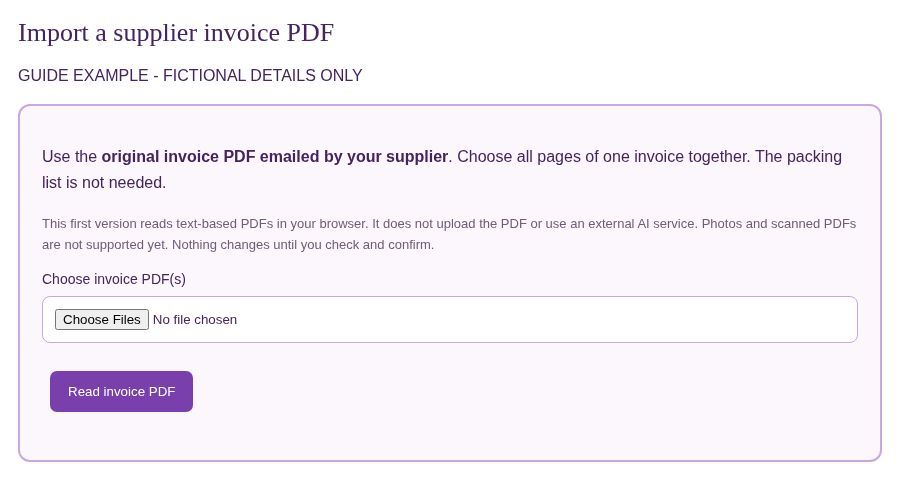
Use the original invoice PDF emailed by your supplier. This avoids typing each new purchase separately.
- Sign in to your business account. Click Stock, then open Import supplier invoice PDF.
- Click Choose invoice PDF(s). Find the original supplier invoice in your device files. Select it. A multi-page PDF is fine; if one invoice is split across files, select those files together.
- Click Read invoice PDF. Wait for the item list. Reading fills in a draft: it has not added or saved any stock.
- Check Supplier, Invoice / order number and Invoice date. Enter anything missing. Import one invoice at a time.
- In How should buying costs be recorded?, choose Keep invoice pack prices as shown, or Add invoice VAT to the pack prices. Add VAT only when the invoice pack prices exclude it.
- Optional: include delivery in item costs spreads the invoice delivery charge across the products. Leave it off if you do not want that charge included in stock costs.
- Keep this tab open while checking. Refreshing or closing it loses this unfinished invoice draft.
Which files work?
This version reads text-based PDF invoices. Photos and scanned PDFs are not supported yet. Different supplier layouts can need corrections.
Where is the PDF read?
In your browser. The original PDF is not uploaded by this importer. Confirmed stock details and the import record are saved to your private account.
What about the packing list?
Keep delivery checks and missing-item follow-up outside the app. Import the invoice, not the packing list.
Invoice items: bags of balloons or complete kits?
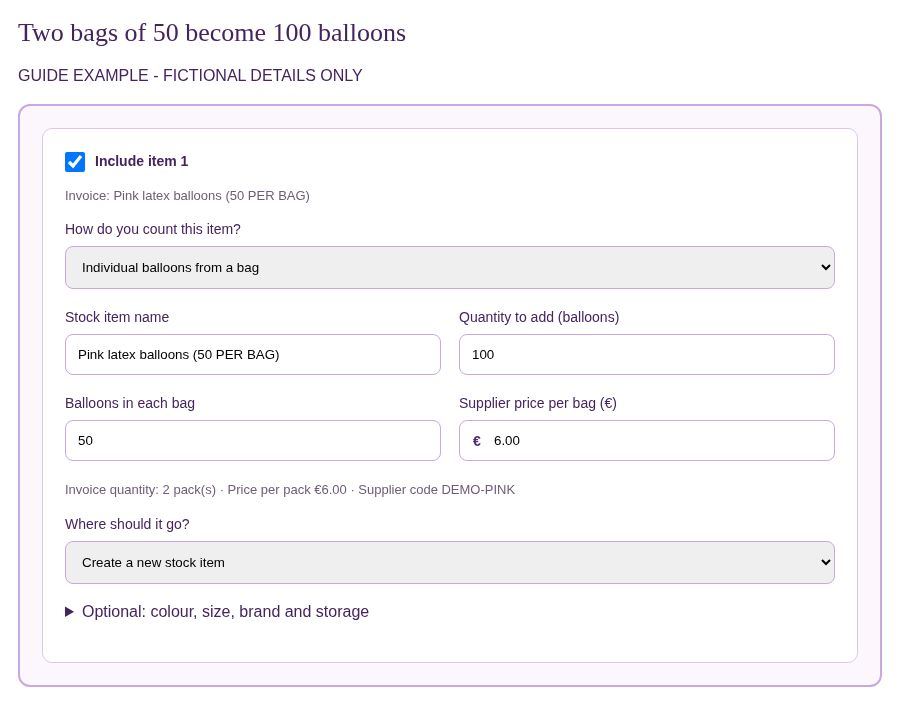
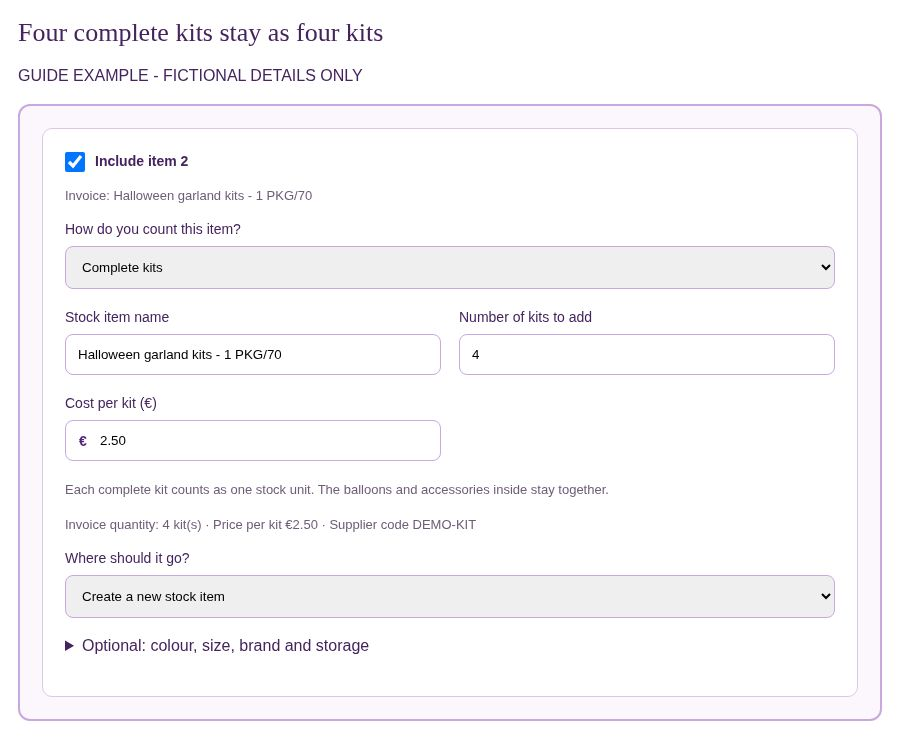
How do you count this item? tells the app what one stock unit means. A balloon and a complete kit are different units.
- For a normal bag, choose Individual balloons from a bag. Enter Balloons in each bag. The app multiplies that by the number of bags on the invoice.
- Example: 5 packs of Bloody Hands balloons, with 4 balloons in each pack. Enter 4 in Balloons in each bag. Quantity to add should show 20 balloons. If the invoice price is €1.00 per pack, enter €1.00 as Supplier price per bag.
- For a complete garland kit, choose Complete kits. The pack-size field disappears. Its balloons and accessories stay together as one kit.
- Example: 4 Halloween kits containing 70 balloons each. Number of kits to add is 4 and Cost per kit is €2.50. Do not enter 280 balloons or 70 kits.
- For other materials or accessories, choose Other supplies. Check Items in each purchased pack and the quantity to add. Use the optional Counting unit field for a suitable word such as items or metres.
- Open Optional: colour, size, brand and storage to check the details and choose or type a brand. Enter the box, shelf or folder in Storage location.
- If a row should not be added, untick Include item. Use Add a missing item row only if the PDF reader missed a product you do want to add.
Prices versus quantities
Prices look like €1.00 or €2.50. Quantities are counts such as 20 balloons or 4 kits. Supplier prices are purchase costs, not customer selling prices.
VAT example
A €5.39 pack with 23% VAT becomes €6.63 when displayed. If VAT is already included in the recorded pack cost, do not add it again in a quote.
Two decimal places
Displayed money uses two decimal places, such as €0.05 and €1.50. A per-balloon price is rounded for display; totals still use the full purchase cost.
Invoice stock: review, confirm and save
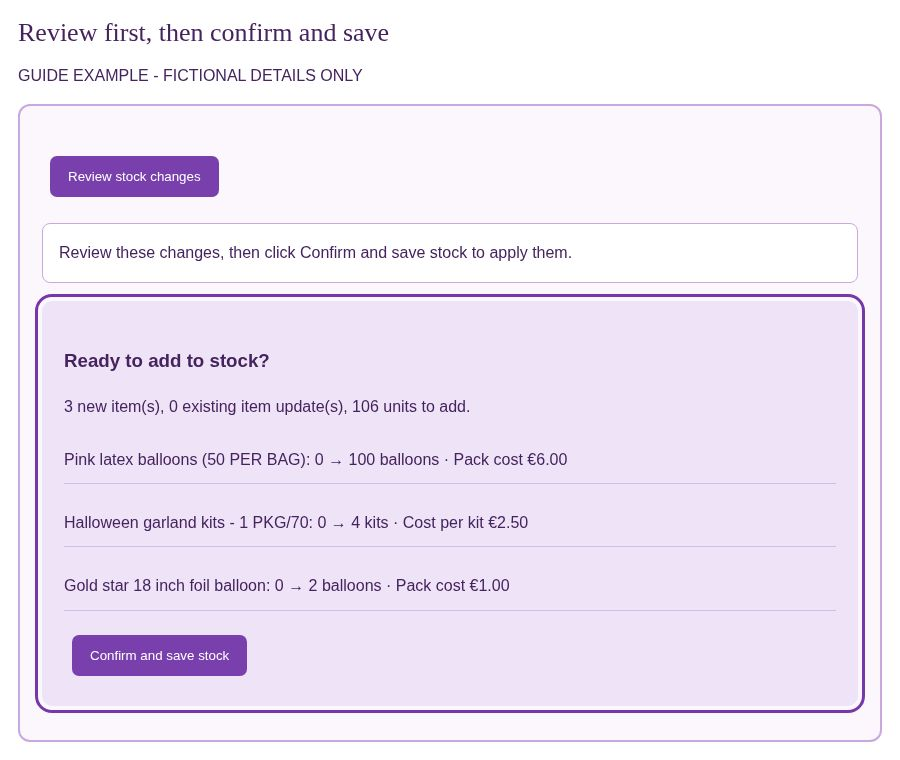
You finish an invoice import in two clicks: first review the changes, then confirm and save them.
- Check each selected item: name, counting method, quantity, pack price, storage location and where it should go.
- Where should it go? can create a new stock item or add to an existing one. When adding to an existing item, check the match and tick Yes, add this quantity. This is a new purchase of stock you already keep.
- If the same invoice or file is already recorded, read the warning carefully. Only tick the extra confirmation if you deliberately want those quantities added a second time.
- Tick I have checked these items, quantities and costs. Click Review stock changes. A yellow message beneath the button explains anything missing. Complete that item and try again.
- In Ready to add to stock?, read each before-and-after count. 50 to 150 balloons means 100 new balloons will be added. 0 to 4 kits means four complete kits will be added.
- If a count is wrong, go back to its item row and correct it, then click Review stock changes again. The purple preview must show the corrected figures.
- Click Confirm and save stock once. Wait for Invoice import saved online. Check the stock register and Previous invoice imports to confirm the result.
- If saving fails, keep the page open. Download a private backup before reloading. Use Retry this save if offered; do not read and add the invoice again to fix an uncertain save.
Old purchases already used
To keep a historical purchase, import its original quantity first. Then edit that stock item to the actual quantity left and save it. Example: four kits bought and all used for Halloween leaves zero kits; add a note explaining why. Do not do this twice.
Existing records
Adding a purchase to an existing item increases its quantity and updates its pack cost for future use. It does not change an older saved quote or automatically reserve stock.
Job planner: choose stock and save a job
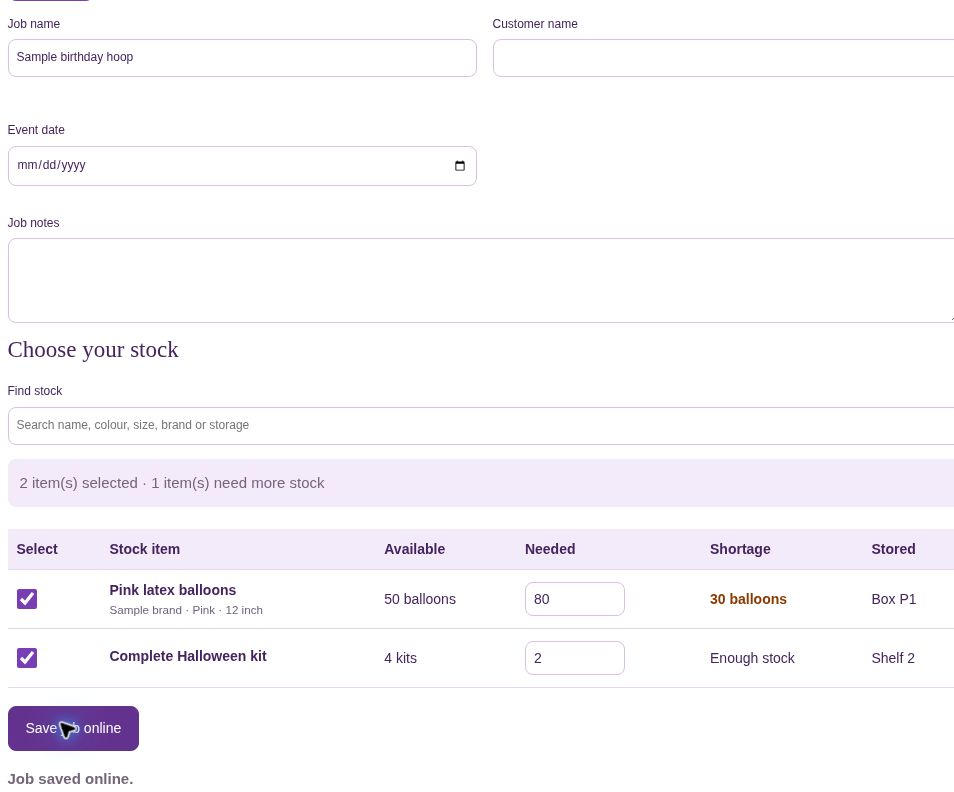
Build a compact list of the stock needed for one job.
- Click Job planner, then New job. Save any current job first if you want to keep it.
- Enter Job name. Customer name, Event date and Job notes can be filled in if useful.
- Use Find stock to search by item name, colour, size, brand or storage location. Tick Select beside each item you need.
- Enter the total quantity Needed for this job. Use the item’s counting unit: 80 balloons means individual balloons; 4 kits means four complete kits.
- Check Available, Shortage and Stored. You can plan a quantity larger than the stock available; the shortage shows what is missing.
- Click Save job online and wait for Job saved online. Find it in Saved jobs. Open job lets you change and save the plan.
Search keeps your choices
Items stay selected when a different search hides them. The selected-item summary includes those choices.
Planning is not picking
Saving or printing a plan does not reserve or remove stock.
Pick list: print and deduct stock
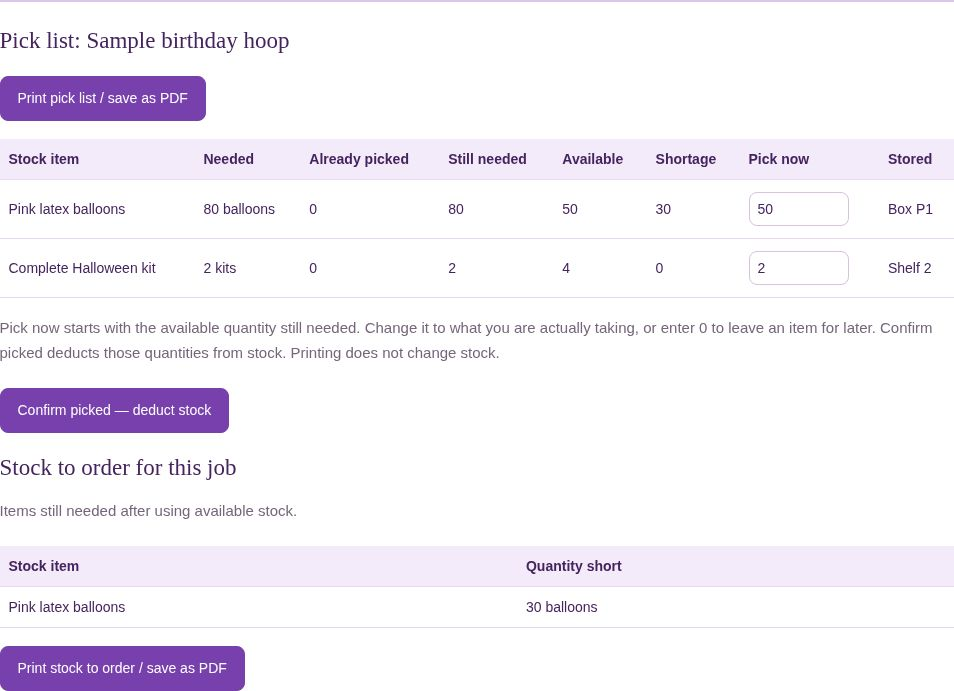
Confirm only the quantities you are actually taking for this job.
- In Job planner, find your saved job and click Pick list. Saving a job also opens its pick list underneath Saved jobs.
- Check Needed, Already picked, Still needed, Available, Shortage and Stored. Pick now begins with the available quantity still needed.
- For a paper copy, click Print pick list / save as PDF. In the preview, click Print / save as PDF and choose your printer or Save as PDF. Back to job closes the preview.
- Change Pick now to what you are taking. Enter 0 if you are leaving an item for later. You cannot pick more than is available or more than the job still needs.
- Click Confirm picked — deduct stock. Check the confirmation before agreeing. Wait for Picked quantities saved online. Stock has been deducted.
- Check Stock to see the reduced quantities. Reopen the pick list to see Already picked and the remaining quantities.
Shortage example
A job needs 80 white balloons but only 50 are available. Pick 50 now; 30 remain needed. Add new purchases to Stock before picking the remaining 30.
If saving fails
Keep this page open and use Retry saving stock changes. Do not import, manually subtract or pick the same quantities again to fix an uncertain save.
Stock to order: print a job’s shortages
Use this list to see what you still need to buy for a particular job.
- Open the saved job’s Pick list. Look underneath it for Stock to order for this job.
- Read Stock item and Quantity short. The list accounts for quantities already picked and stock still available.
- Click Print stock to order / save as PDF. The preview contains item names and shortage quantities, without a supplier.
- Click Print / save as PDF in the preview. Choose your printer or Save as PDF. Use Back to job to return.
- After purchasing more stock, add it through the invoice importer or Stock. Reopen the pick list to check the remaining shortage before picking again.
Job shortages versus low stock
Stock to order covers this job. Download low-stock list in Stock is a separate CSV spreadsheet covering all items at or below their low-stock levels.
Counting units
The quantities use the item’s stock unit. A shortage of 30 balloons means 30 individual balloons, not 30 bags.
Stocktake: count what you physically have
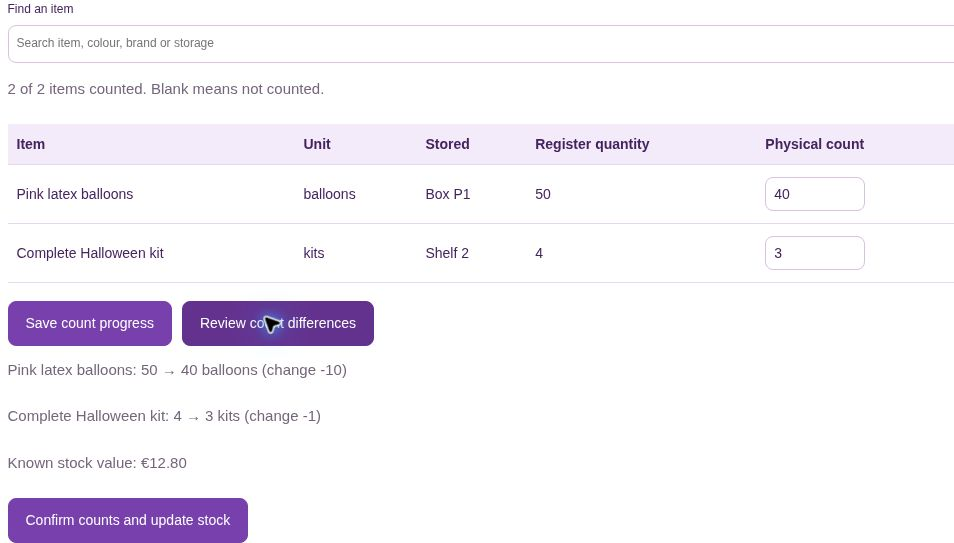
Use a physical count to compare your shelves and boxes with the register.
- Click Stocktake & value, then Start new stocktake. Starting a new count replaces an unfinished count after confirmation.
- Count each item physically. Enter Physical count in its normal stock unit. Enter 0 if none remain. Leave uncounted items blank.
- Use Find an item to search by item, colour, brand or storage. Your other counts stay in the draft when hidden by the search.
- Click Save count progress if you need to stop. Wait for Count progress saved online before leaving. You can resume that saved count later.
- When every item has been counted, click Review count differences. Check each before-and-after quantity and the known stock value.
- Click Confirm counts and update stock only when the counts are correct. Confirm the message, then wait for Stocktake saved online. A dated report is saved and stock quantities are updated.
Blank is different from zero
Every item needs a count before confirmation. Blank means you have not counted it; 0 means you counted it and none remain.
If stock changed during the count
The app asks you to start a new stocktake and check the counts. A count below a reserved quantity must be resolved in Stock first.
Stock value: save the current figures
The current estimate uses quantities held and the latest pack costs saved in your register.
- Open Stocktake & value and read Known stock value. Items with missing costs are identified and excluded from that known total.
- If a cost is missing, check the item’s Bag / pack size and Latest bag / pack cost in Stock. Save any correction before making the report.
- Click Save current stock value report. Wait for Stock value report saved online.
- Find the new dated entry in Saved reports. Click View report to read the quantities and values saved at that time.
How it is calculated
Quantity held × saved pack cost ÷ units in that pack. A bag of 50 costing €6.63 gives a value of €3.32 for 25 balloons when displayed.
VAT and reservations
VAT stays as recorded in the pack cost; the report does not add it again. Reserved stock is included because it is still held.
Saved values
Later purchases, price changes or stock edits do not rewrite an older saved report.
Saved reports: view, Excel and PDF
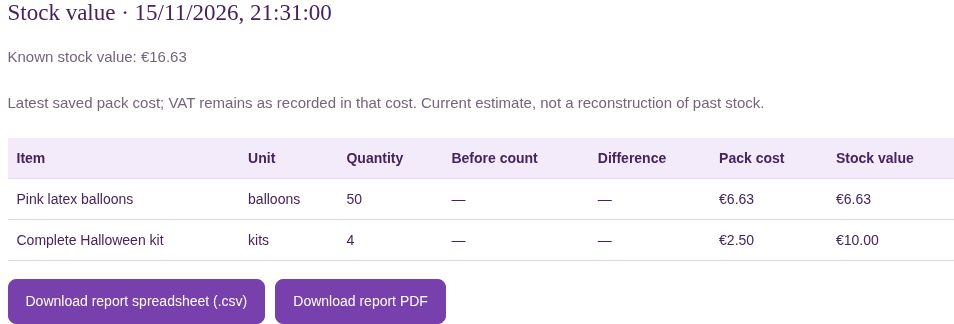
Stocktake and stock value reports have separate spreadsheet and PDF download buttons.
- Open Stocktake & value and find Saved reports. Choose the entry with the date and time you need.
- Click View report. The report opens underneath the saved reports list on the same page. Scroll down to see its rows and download buttons.
- Check the saved date, Known stock value, missing costs, quantities and pack prices. Stocktake reports also show the previous quantity and the difference.
- Click Download report spreadsheet (.csv) for Excel. You can also import that CSV file into Google Sheets. Look in your browser’s Downloads list for the file.
- Click Download report PDF for a dated PDF copy to read, print or share. The PDF repeats headings and adds page numbers when the list is long.
- If you save a report twice, two dated entries appear. Choose the one you need; saving a value report does not change stock.
Both formats use the saved report
Downloading does not change stock or update an old report to today’s figures. Save a new report if you need the current position.